FM WebSocket 4.0
Description
Minimal setup guide for Internet Live Stream via FMWebsocketManager.
Basic Setup
FM WebSocket 4.0 supports “Room System” with customised room name. All the data are streaming through the self-host node.js server. (server script included in the package)
This package includes example script of a very light-weight node.js server, which you may host it on any Cloud Virtual Machine(linux, windows or mac)
There are two parts in this tutorial setup.
Part A: node.js server
Part B: Unity3D FMWebSocketManager
Part A: Node.js server
Our example server is located in our plugin root folder
/FMWebSocket/TestServer_v6.x.x/Resources/FMWebSocket
- Install npm + node.js Download and install necessary items
https://nodejs.org/en/download/
- Install express https://expressjs.com/en/starter/installing.html
cmd/terminal: npm init
cmd/terminal: Enter…
cmd/terminal: npm install express –save
- Install ws module
cmd/terminal: npm install ws
- Finish & Test on localhost
You may follow this step-by-step tutorial, the commands are compatible in Mac/Windows/Linux https://youtu.be/Zjm5KGHyceU
Part B: Unity3D FMWebSocketManager Setup
Setup for Sender Scene(Sender)
-
Create new Game Object and Add Component
FMWebSocketManager -
Choose
NetworkTypeasRoom, IP address should be your node.js server’s IP, default127.0.0.1is just for testing on local machine.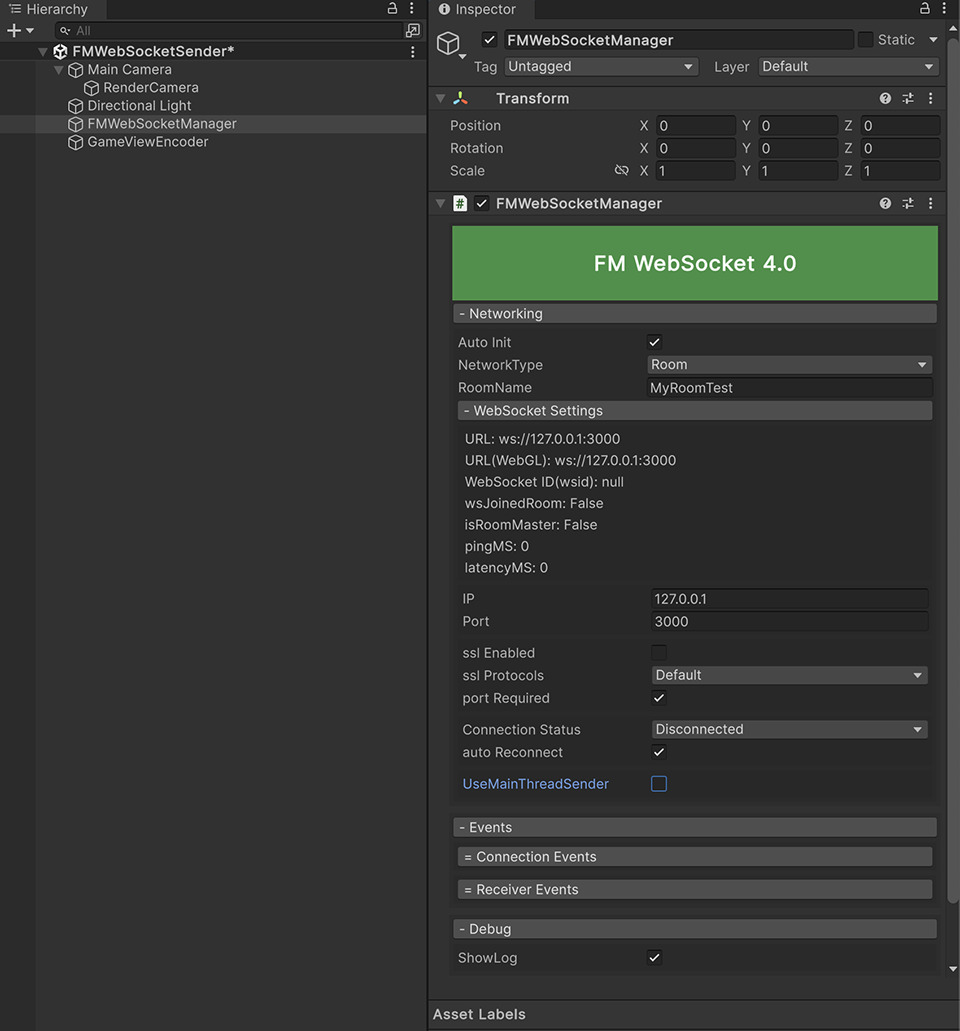
-
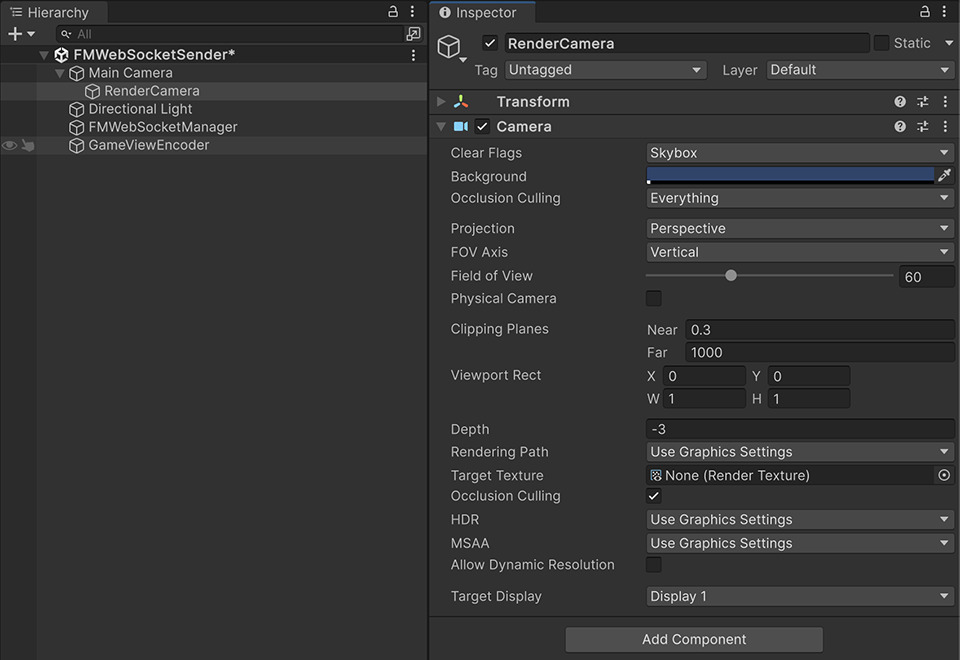
Create a Camera Object and rename as “RenderCam”
-
Create new Game Object and Add Component
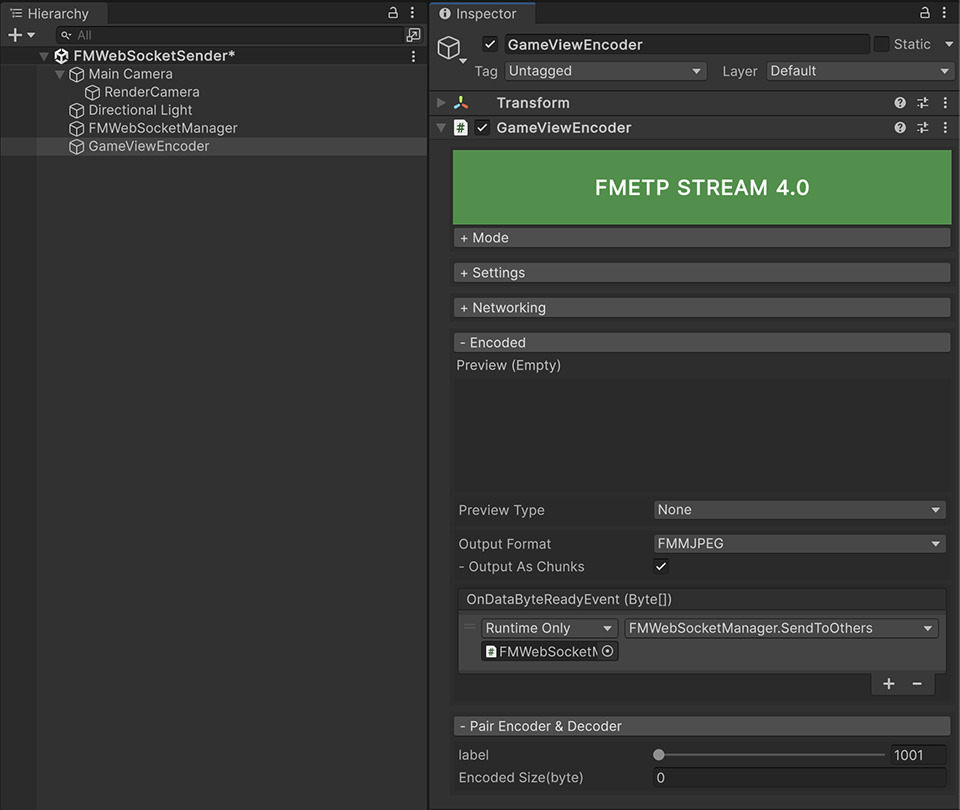
GameViewEncoder -
Assign “RenderCam” into GameViewEncoder Settings->RenderCam
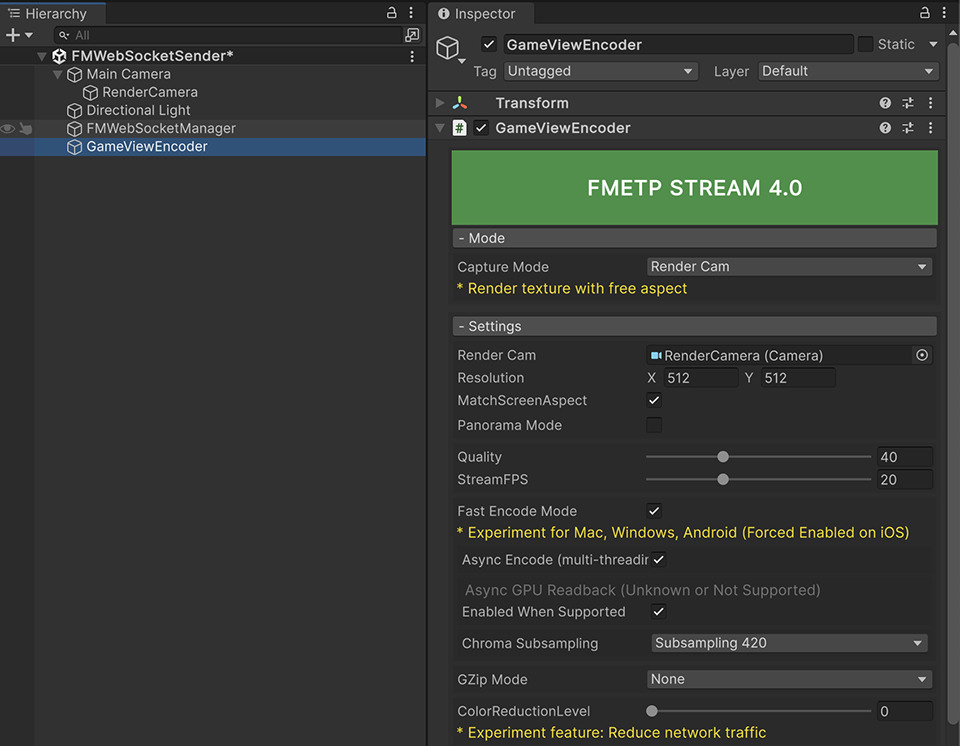
MainCam modeis recommended for good performance, you may assign “Main Camera” instead adding extra RenderCamRenderCam modeis only recommended for older WebGL Build, to prevent any flickering bug on Web Browser.Output Format FMVPX(VP8)is recommended for compatibility
- Add Event “+”, and assign FMWebSocketManager into
OnDataByteReadyEvent - Change “No Function” to FMWebSocketManger -> SendToOthers(Dynamic Byte[])
Setup for Receiver Scene(Receiver)
- Create new Game Object and Add Component
GameViewDecoder, Assign the preview typeRaw Imagefor quick preview.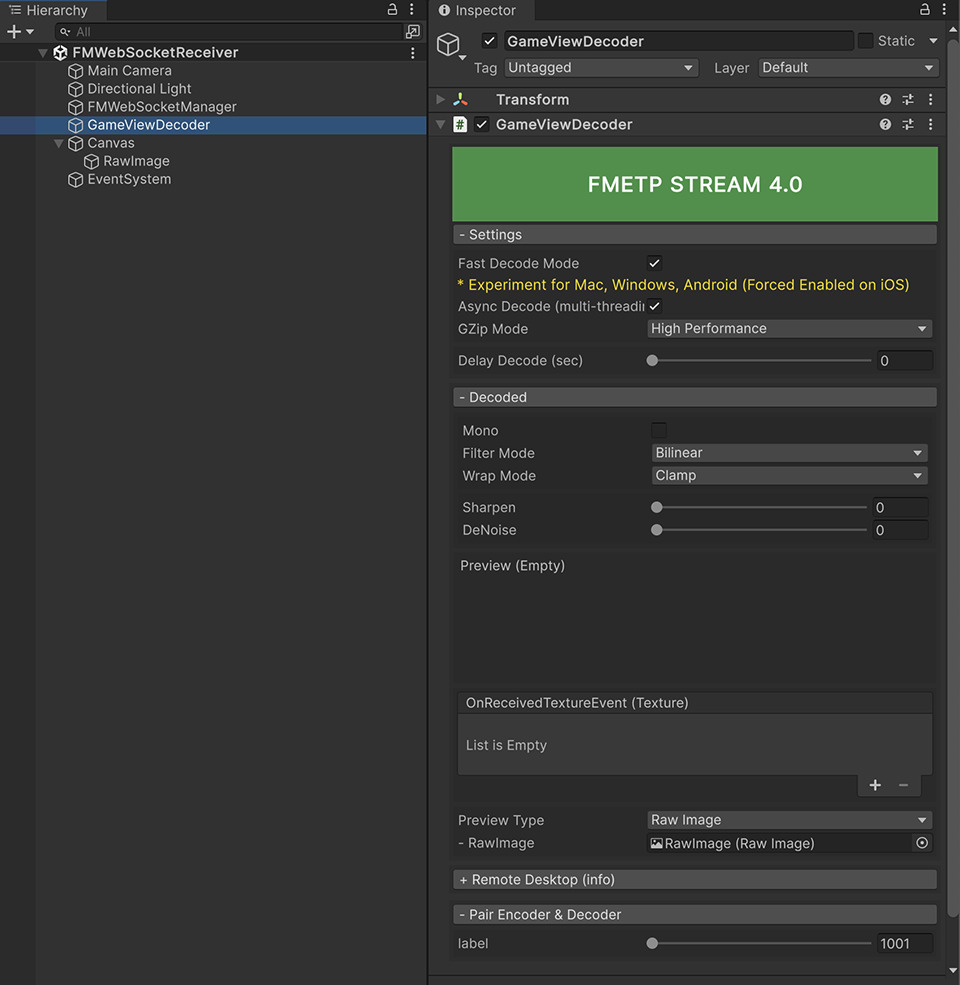
- Create new Game Object and Add Component
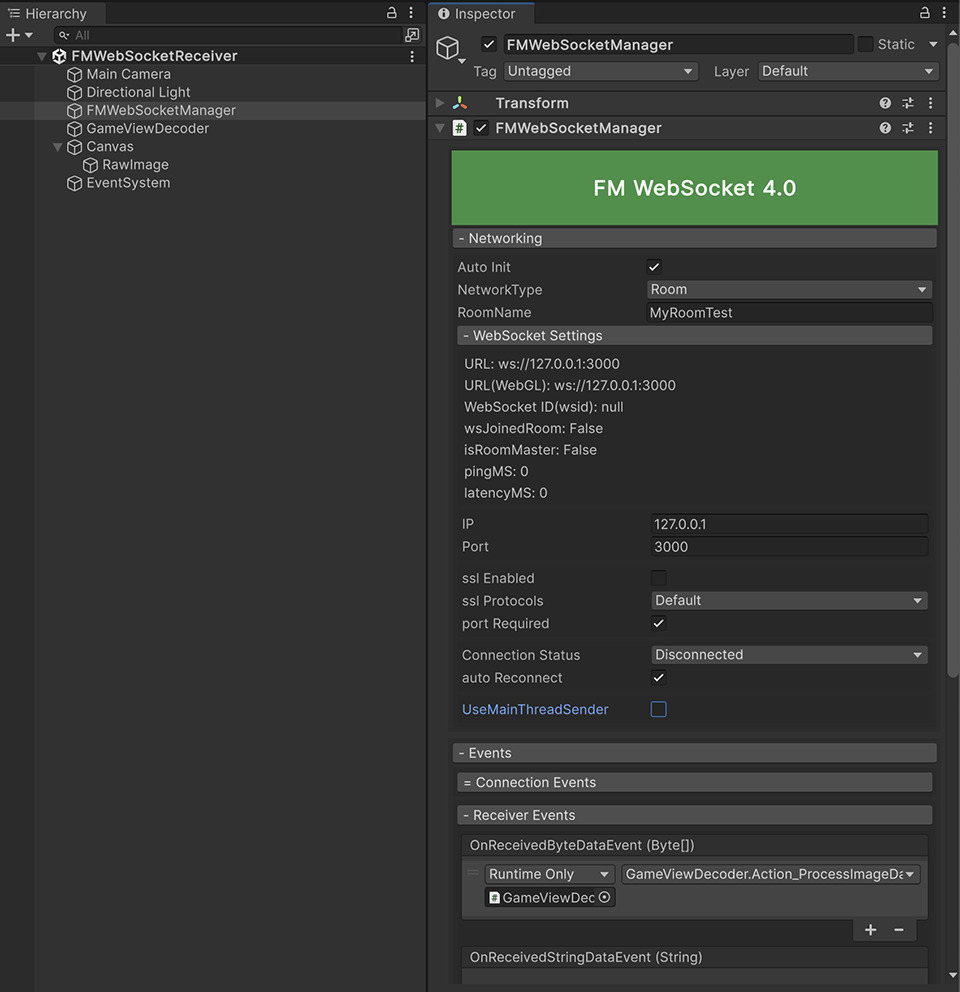
FMWebSocketManager - Choose
NetworkTypeasRoom, IP address should be your node.js server’s IP, default127.0.0.1is just for testing on local machine. - Add
GameViewDecoderto FMWebSocketManager -> OnReceivedByteDataEvent - Change “No Function” to GameViewDecoder -> Action_ProcessImageData(Dynamic Byte[])